

Back in the days of Championship Manager, the game used to automatically show you the latest results from major competitions such as the World Cup and the Champions League. Some of you probably miss that now, though you can still set that up manually on Football Manager 2023.
Hidden in the game settings is an underrated feature called ‘Screen Flow’. It can look daunting at first glance, but this guide will take you through every step of the process.
Screen Flow can also be a useful tool for finding exciting young prospects before other clubs snap them up. Tracking the statistics of various continental and international youth competitions can alert you to some potential starlets who you might then want to send your scouts to look at.
This guide was written specifically for FM23, but it also works on FM22, FM21 and FM20. If you are still playing FM19 or an earlier version of Football Manager, the instructions are slightly different, so please refer to this guide instead.
SCREEN FLOW
1) Firstly, load your save game. Then click on the ‘FM’ icon at the top of your screen, and select ‘Preferences’ in the drop-down menu. The Preferences pop-up will then appear.
2) At the top of this pop-up is a search box. Click inside this box and type ‘screen flow’.

The Custom Screen Flow option will then pop below the search box, with a ‘Screen Flow’ button to the right. Click on this button, and the Screen Flow dialog will drop down and appear in full.
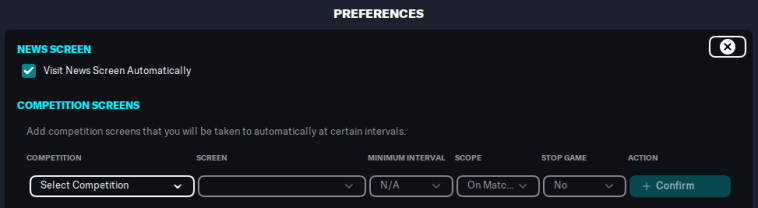
3) The Screen Flow options are divided into two sections. While you are setting up your screen flow, you’ll want to focus on the ‘Competition Screens’ section.
Under ‘Competition’, select the competition you want to follow in the drop-down menu. Competitions are divided by continent (or World), and then by nation (if applicable).
4) Under ‘Screen’, select the screen for the relevant competition you want to be taken to in the drop-down menu. The menu should look like this:
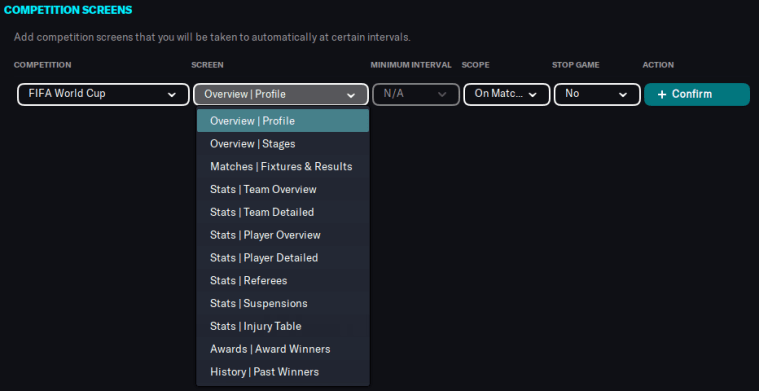
If you want to view the latest results from the World Cup or another competition, select ‘Matches | Fixtures & Results’. On the other hand, if you want to track player statistics from a youth competition (such as the South American U20 Championship), select ‘Stats | Player Overview’. By and large, all the options are rather self-explanatory.
5) Now it’s time to select the ‘Minimum Interval’ you want to be taken to the screen, and the ‘Scope’. This is a little more complicated, so bear with me for a while.

There are three different options under ‘Scope’. The default option is ‘On Matchdays’, which means that the game will take you to that screen on every day where a match is being played in that competition. This will grey out the Minimum Interval menu.
Setting the scope to ‘All The Time’ or ‘During Competition’ will allow you to change the Minimum Interval – the menu for which you can see below.
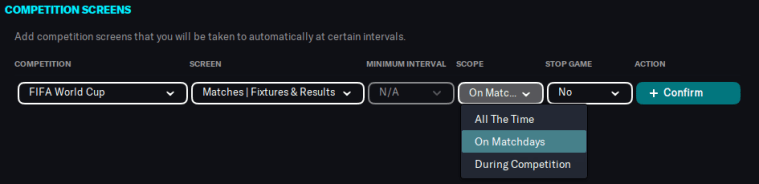
If the Minimum Interval is set to one of the ‘Every…’ options, set the Scope to take you to the screen at that time interval ‘All The Time’ or just ‘During Competition’. For example, you can ask the game to take you to that screen at the end of ‘Every Day’ all the time, or only while the competition is ongoing.
If the Minimum Interval is set to ‘At Completion’, the Scope changes to ‘On Matchdays’ by default, and you will only be taken to the screen once the competition has been completed. If you want to view the screen on ALL matchdays, select another Minimum Interval and then choose the Scope option ‘On Matchdays’.
6) Under ‘Stop Game’, choose when/if you want the game to automatically stop processing and land you on the screen you’ve selected. Selecting ‘Morning’ or ‘Evening’ will stop the game and take you there at the relevant time. Selecting ‘No’ will show you the screen in the background, but the game will continue to process and move forward.
[IMPORTANT: There is a bug with Screen Flow in FM, where stopping the game DOES NOT work on the final day of a tournament. For example, if you want to follow the World Cup results, stopping the game on matchdays will work on every matchday EXCEPT the day of the World Cup Final, which means you’ll have to find the result another way. This bug has been in the game for years but hasn’t been fixed.]
7) Once you’ve set everything as you want it, click on the turquoise ‘Confirm’ button. This is how my Screen Flow looks when I’ve set the game to take me to the World Cup results screen after every matchday:
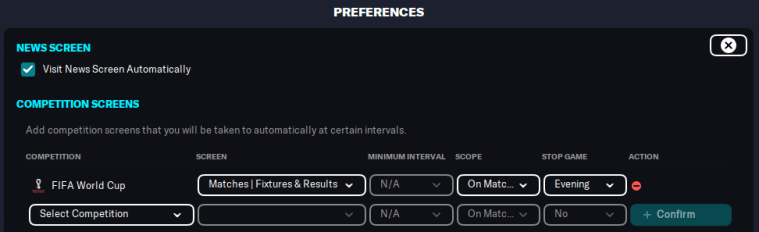
If you’ve made a mistake or just want to try a different screen, you can change any of these settings at any time (though you can’t change the competition). If you decide in the future that you want to delete a screen, click on the small red circle on the right to remove it.
8) Repeat the process for every competition screen you want to add, and then click on the ‘Confirm’ button at the bottom of the screen to confirm your changes and close the Preferences pop-up. If you want to change any other preferences while you’re at it, you can click the ‘X’ button to close the Screen Flow dialog; just remember to click ‘Confirm’ when you’re done.

Remember that any additions you make to your Screen Flow only apply to the save game that is currently open, and that you will have to recreate everything when starting a new game. Unfortunately, there is currently no way to save your Screen Flow settings and import them into other saves. If anyone from Sports Interactive is reading this, could you please add this feature in a future game?
NEWS SCREEN
Oh, and there’s one more thing on the Screen Flow dialog that you might find pretty handy. Above the ‘Competition Screens’ section is a simple ‘News Screen’ option, with a tickbox for ‘Visit News Screen Automatically’.
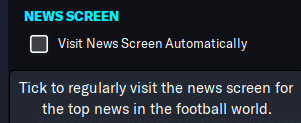
This box is TICKED by default, which means that you will regularly be taken to the News or Social Feed pages when the game has finished processing after you click ‘Continue’.
If you UNTICK this box, the game will take you to your Inbox by default after processing. This can be a great time-saver, especially if you don’t care about in-game news or think social media is for twits, or even if you just want to focus on your club. I’ve also seen some people say that unticking this option leads to fewer stops in processing, which again can save you some time.
I hope this guide has been useful to you. If you get stuck with anything, drop a comment below or tweet me @Fuller_FM, and I’ll try to help.
 Fuller FM
You must be logged in to post a comment.