

Football Manager 2021 is being released in just a few days’ time. While thousands of FMers are already getting stuck into the beta, many of us are already thinking of what our first save game will be after the game officially drops on Tuesday 24 November.
There are a lot of questions we ask ourselves before creating a new football universe? How many leagues do I want? How many players? Can my computer cope with it? And, most importantly, will the game run fast enough for me to enjoy?
I hope this guide will give you some useful tips and advice for when you go into the save creation process.
FIRST THINGS FIRST

Most of us will begin the save creation process at the main menu by clicking on “Start a New Game” and selecting “Career”. The Career Game Setup screen will then pop up, as shown above.
On the top left, you can set your Starting Job. You can start off as a Club Manager, an International Manager, a Club and International Manager (if you’re feeling brave), or Unemployed.
You’ll then be invited to choose a club and/or nation to manage, though if you’re undecided, you should select the ‘Pick team later’ option. You’ll then be asked to pick a team once you have created the save game and added your manager.
On the top-right, you can select the starting database. At first, you’ll only be able to select the original database from November, but once the big winter update drops (usually around February or March), you’ll also have the choice of using the most up-to-date squads.
If you have installed any editor data files (which make changes to the database), you can also select which ones you want to use in your save game. You’ll probably want to test out any custom league files for possible bugs before starting your save proper.
Once you’re happy with everything, you can immediately begin creating your save by clicking ‘Quick Start’. This will load the league you have selected, plus a few other recommended leagues. For example, running a Quick Start in England will load the English, French, Dutch, Spanish and Welsh leagues.
However, most of us will want more control over which leagues we want loaded and the size of our database. For that, you’ll want to click on ‘Advanced Setup’ instead. That will take you to a new screen, with a bevy of options to select.
HOW MANY LEAGUES SHOULD I LOAD?
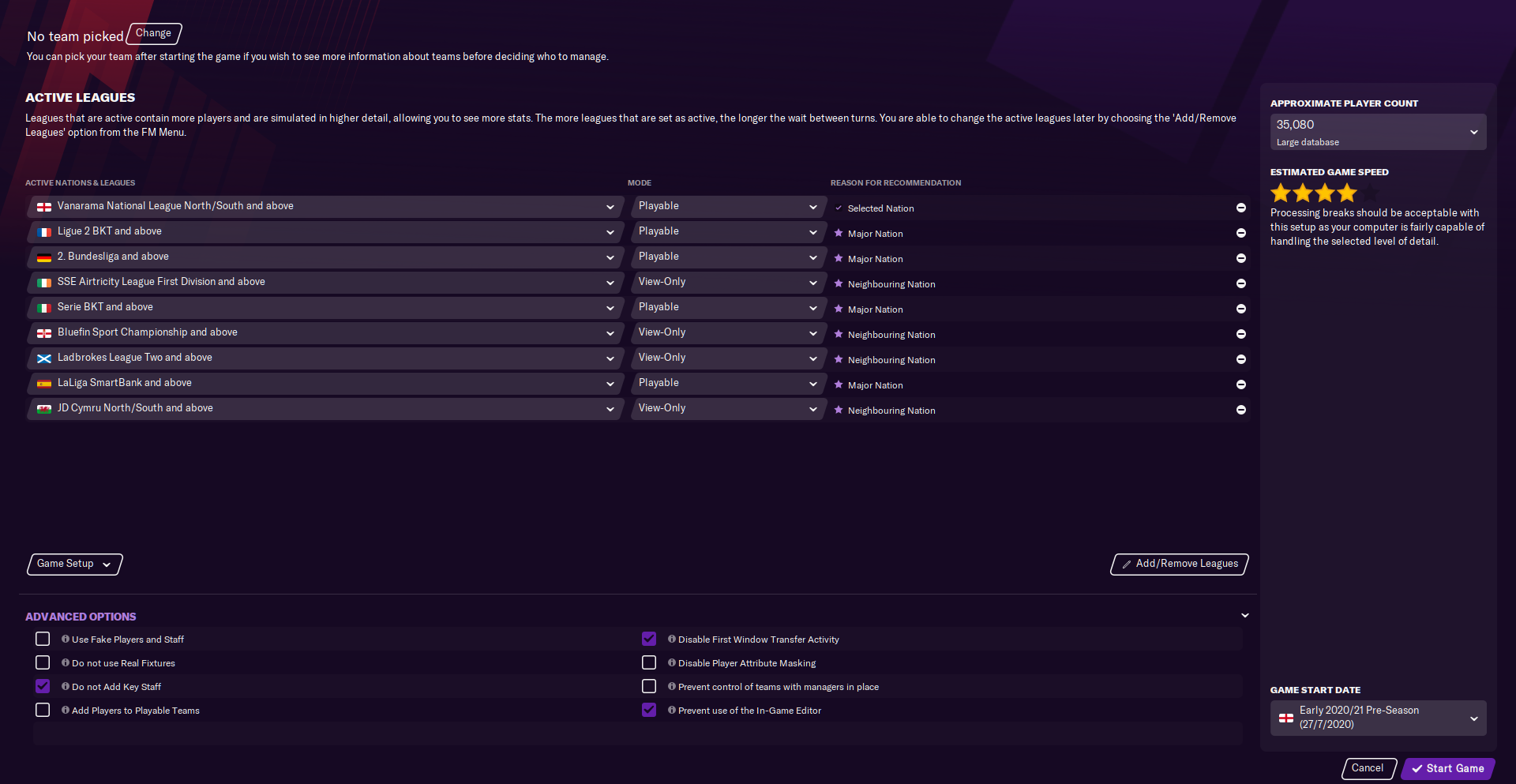
How long is a piece of string?
There is no right answer here. It largely depends on how powerful your computer is, but also on how you like to play the game.
If you’re using a five-year-old laptop with an Intel Core i3 processor, you might only be able to run a few leagues at most. Loading too many leagues might work your computer so hard that it sounds like a rocket taking off – and at worst, the system might crash or freeze.
A mid-tier processor should be able to load several leagues, while a more powerful one (e.g. an Intel Core i7, which I have in my computer) could maybe handle most of the European national leagues in FM21. If you’re fortunate enough to have a top-range Intel Core i9 or AMD Ryzen 9, you could perhaps run all the leagues without too many problems.
While your processor should be the most important consideration when it comes to hardware, you will also want to have plenty of RAM. You need a minimum of 4GB RAM to run FM21 – or at least have it run faster than Wes Morgan. I’d recommend at least 8GB, especially if you have other programs open alongside FM.
Upgrading to 16GB or even 32GB is important if you are (or want to be) a YouTube creator or Twitch streamer, and it’s a good future-proofing move in general. That said, the extra RAM won’t make much difference in terms of running Football Manager faster, so don’t upgrade it just for FM.
Even more important, though, is how you judge a game’s speed. Some FMers like to race through seasons in a matter of days (if not hours), while others happily play at a more leisurely pace. What might be a good pace for one player might be too slow for another.
If you’re not sure how many leagues will be fast enough for you, consider creating some test saves and putting them on holiday mode for a few months or a full season. To save your current game setup, clicking on “Game Setup” and select “Save As” from the drop-down menu.
You can reload your settings later from the same menu, so that you don’t have to change everything back to how it was whenever you return to Advanced Setup. You can add/remove leagues as you go, change other settings, save a new game setup, and then continue the testing process until you’re satisfied.
WHICH LEAGUES SHOULD I LOAD?
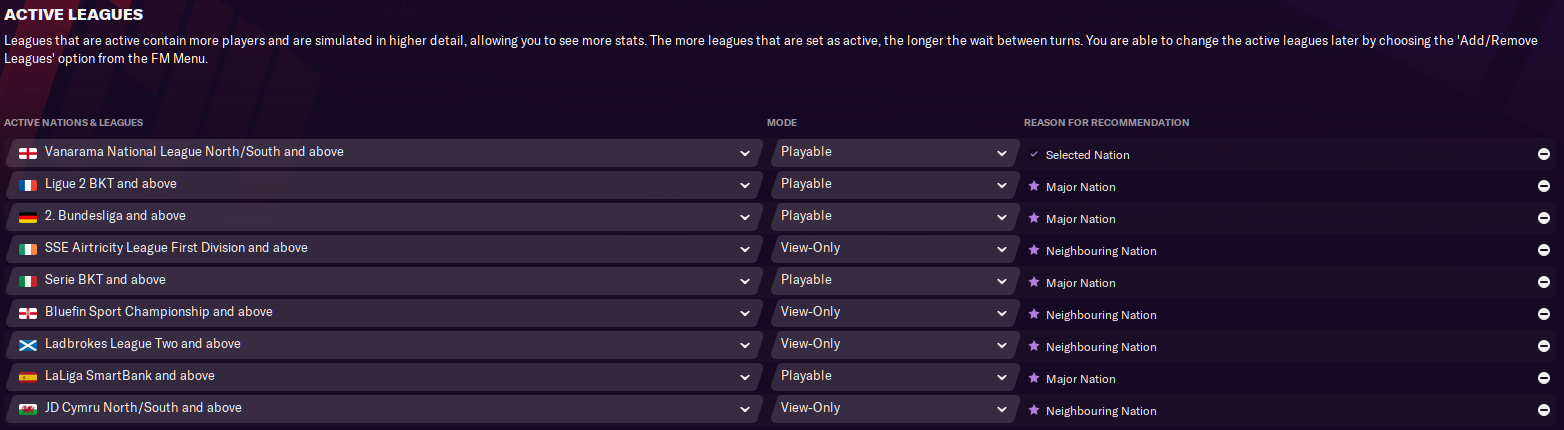
Again, this largely depends on your computer, and how you want to play your game.
When I begin my journeyman save next month, I’ll probably load at least the top two divisions in all 34 playable European nations. Mind you, I have a rather powerful processor and I like to play FM at a steady pace, so this gives me plenty of depth without grinding my computer to a halt.
If your computer can’t handle many leagues, you’ll need to be more sensible, and perhaps consider only adding those the game suggests to you. Depending on the country you want to start in, FM will recommend a certain number of neighbouring nations and major nations. These nations will have stars next to their names in the “Add/Remove Leagues” window.
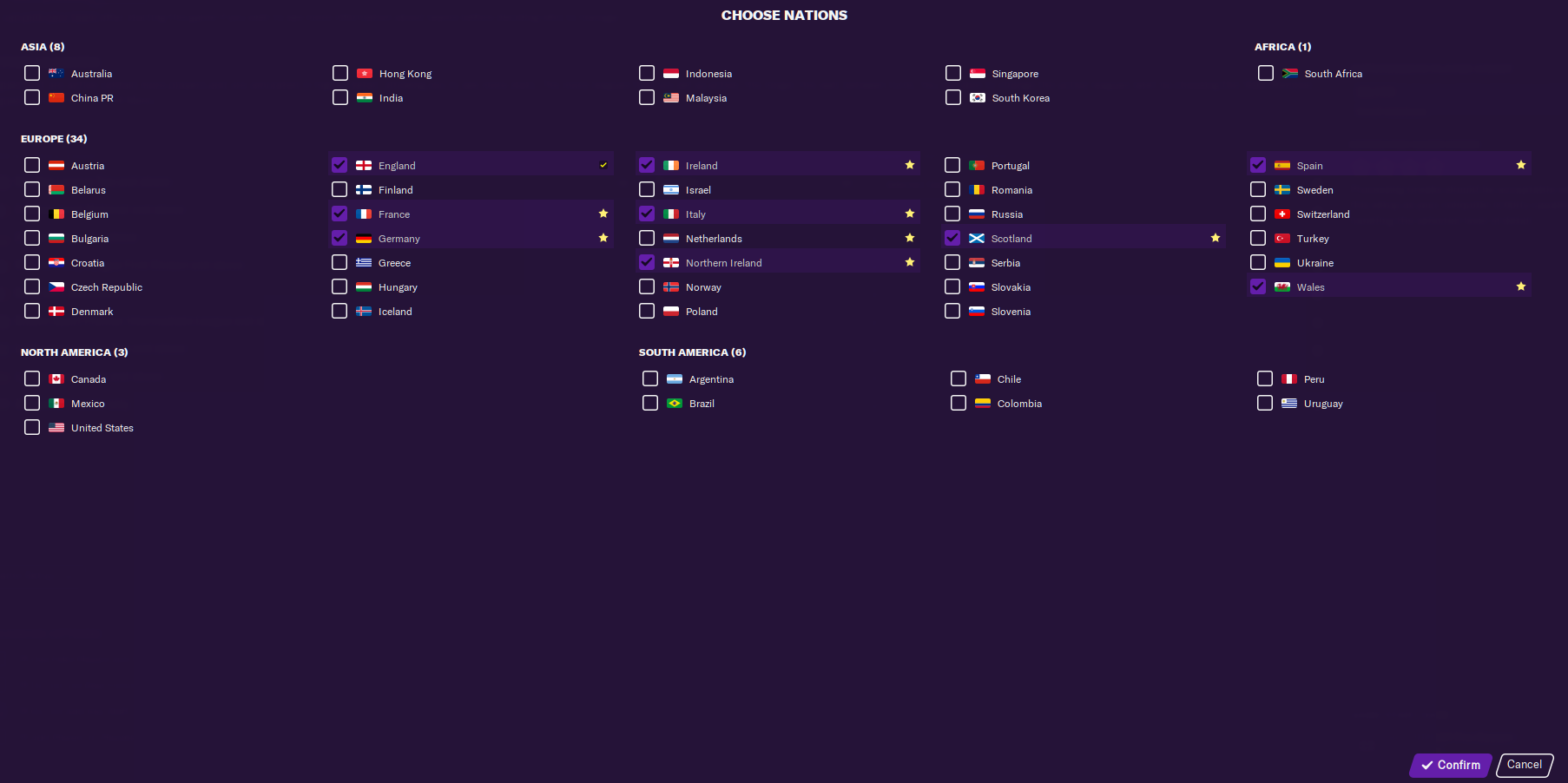
Alternatively, if you’re starting out in the English National League North/South and want a quicker game, you might only want the other British and Irish leagues loaded. If you’re managing a top team, consider adding just the major nations (England, France, Germany, Italy and Spain – and maybe the Netherlands, Portugal and Russia as well for more competition in Europe).
When selecting leagues, you can also set them to be either Playable or View-Only. You can set these under the ‘Mode’ column.
- Playable: This default mode will load all players/staff in the league and allow you to manage there. The transfer market is very active in playable leagues, and matches are simulated in at least some detail.
- View-Only: This mode will only load a limited number of players in the league, and you won’t be able to manage a team there. You can still view the league table, fixtures and stats, though matches are simulated much quicker and in much less detail compared to playable leagues. Transfer activity is also greatly reduced.
- Playable / View-Only Below: A new hybrid mode for FM21, where you can make all leagues in a nation playable at a certain level, with any leagues below that level being view-only. For example, if you select this mode for English leagues from ‘League Two and above’, then the top four divisions will all be playable, and the National League and National League North/South will be view-only.
And of course, you’re not tied down to the leagues you added at the start. As your career progresses, you might want to remove the less important neighbouring leagues and/or add more major leagues. This can be done in-game by clicking on the FM icon and selecting “Add/Remove Leagues” from the drop-down menu.
You can also switch View-Only leagues to Playable and vice versa (another new feature in FM21). Any changes you make will take effect when the relevant league begins its next season.
HOW MANY PLAYERS SHOULD I LOAD?
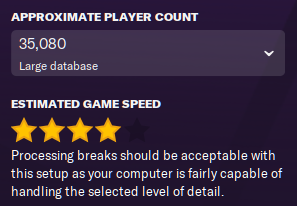
On the right-hand side of the Advanced Setup screen, you’ll see an approximate player count, based on the leagues and database size you have selected. This number will stay pretty consistent throughout your save game (unless you add/remove leagues) as older players retire and new ones are generated.
Under that number is a star rating out of 5, showing an Estimated Game Speed based on your game setup and your computer specs. I wouldn’t read much into this. This rating system seems to bug out if you have other programs loaded alongside FM – and like with player star ratings, 1* doesn’t simply mean “rubbish”. How you judge game speed is much more important.
Anyway, you can change the number of players you have loaded by selecting a database size. A Small database will load only the best players from outside your selected league(s) but won’t put much strain on a less powerful computer. A Medium database will add more players from elsewhere, and a Large database will expand the talent pool further, though this will demand more power.
If you want even more control over how many players are loaded, you can select a Custom database size, which will bring up this pop-up window:
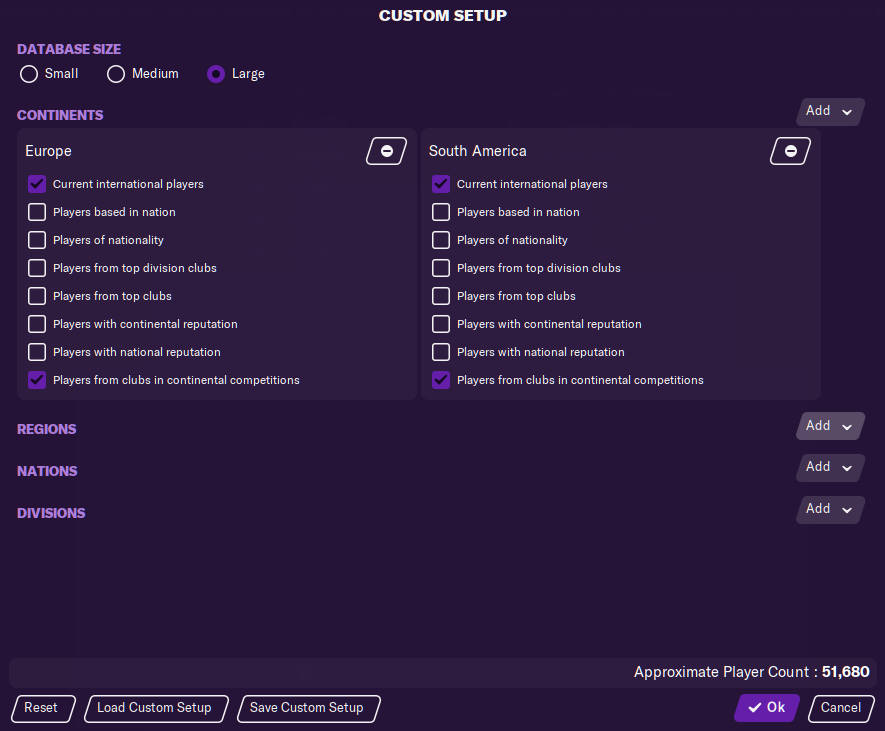
From here, you can choose to load all players from specific continents, regions and nations who meet certain criteria. For example, you may want the game to load all current international players from Europe or South America. You can also load all players based in certain divisions – even unplayable ones.
You should also try to strike a good balance between leagues loaded and players loaded. Basically, a player database that’s either too small or too large for the leagues you have selected can unbalance the transfer market in different ways.
If you load a few leagues with a very large database, the talent pool will be so vast – and with so many cheap options – that it can be much more difficult to sell your surplus players. Inversely, setting up a save game that has plenty of leagues and a small database can create a ‘seller’s market’, and possibly drive prices up.
One more thing: the game will warn you if your approximate player count goes over 125,000. Adding more players than this recommended limit could dramatically slow down the game and/or make it unstable. Then again, there are also stories of users loading 250,000+ players on high-end PCs without major issues, so I can’t say for sure whether you should avoid going over the top, even if your computer can handle it.
ADVANCED OPTIONS

There are also some ‘Advanced Options’, which you can tick to make more specific changes to your career:
- Use Fake Players and Staff: This option will replace everyone in the game with fake players and staff (which even have newgen faces). However, this won’t change the database very much, and most teams will still be recognisable. For example, Barcelona will still have a superstar Argentine attacker – he’ll just have a different name than Lionel Messi.
- Do not use Real Fixtures: Some leagues have their real-life 2020/2021 fixture lists included in the game. Ticking this option will generate completely new schedules for these leagues in the first season.
- Do not Add Key Staff: Usually, which don’t have key backroom staff members (e.g. an assistant manager) will be given newgen staff members at the start of the game. Ticking this option, however, will not add key staff to these teams. If you’re starting at an obscure club, you might want to leave this option alone.
- Add Players to Playable Teams: Selecting this will generate players for playable teams which don’t have enough players at the start of the game. If you want all teams to start with just the players they already have (no newgens), then leave it unticked.
- Disable First Window Transfer Activity: The original database reflects the world after the summer transfer window closed (e.g. Alex Telles starts the season at Manchester United rather than Porto). However, you will typically start a new save back in pre-season, effectively allowing you to run through the summer window for a second time and spend money your team might not have had.
Ticking this option will disable all transfer activity in the first transfer window, forcing all teams to start the season with their existing squads. (Note: this will also prevent you from signing free agents until after the first transfer window has closed.) - Disable Player Attribute Masking: Usually, most players will have their attributes and personalities hidden to you, and they will need to be scouted to reveal them. Ticking this option will reveal all player attributes from the outset, though it will also make scouting less important.
- Prevent control of teams with managers in place: If you tick this option, you will not be allowed to immediately take over any team which already has a manager in place. You will either have to take over any team which doesn’t have a manager, or start unemployed.
- Prevent use of the In-Game Editor: Ticking this option will stop you from editing your save file using the In-Game Editor, even if you have bought it.
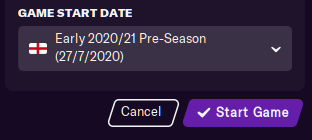
Lastly, you’ll want to think about changing your Game Start Date, depending on when you want to jump into the game. There are even more options than ever on FM21, allowing you to enter the save in late or early pre-season, at the start of the league season, or even when the European competitions get underway.
You don’t even have to select a start date for the country you’re starting in. If you’re managing an English team but want more time to build and prepare your new team for the first season, you can select a start date from Scotland, where the campaign begins a month earlier.
Also remember that the summer leagues (such as those in Brazil and the Republic of Ireland) do not begin until 2021, and thus will not be playable until then. You will be notified about this if have any of those leagues loaded and your start date is set several months before they become playable.
Once you’re satisfied with everything, save your game setup and then click “Start Game”, where you’ll be given a final summary before you start creating the save.
And there you go! If this guide has been useful to you, or you have any other tips to share, you can leave a comment below. You can also find me on Twitter @Fuller_FM.
 Fuller FM
You must be logged in to post a comment.